Automating Screen Context: Why Every macOS Engineer Needs Peekaboo
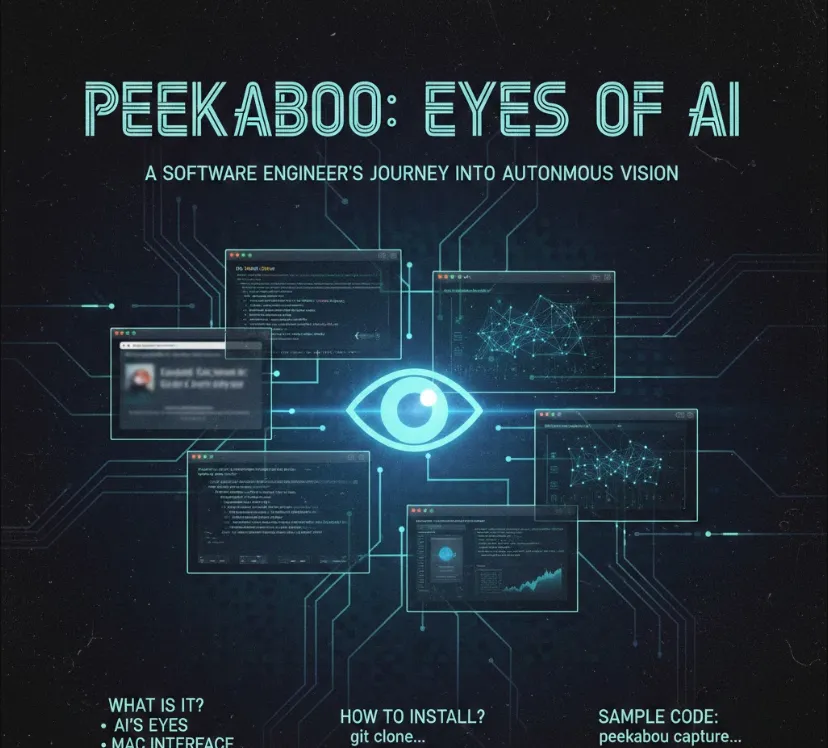
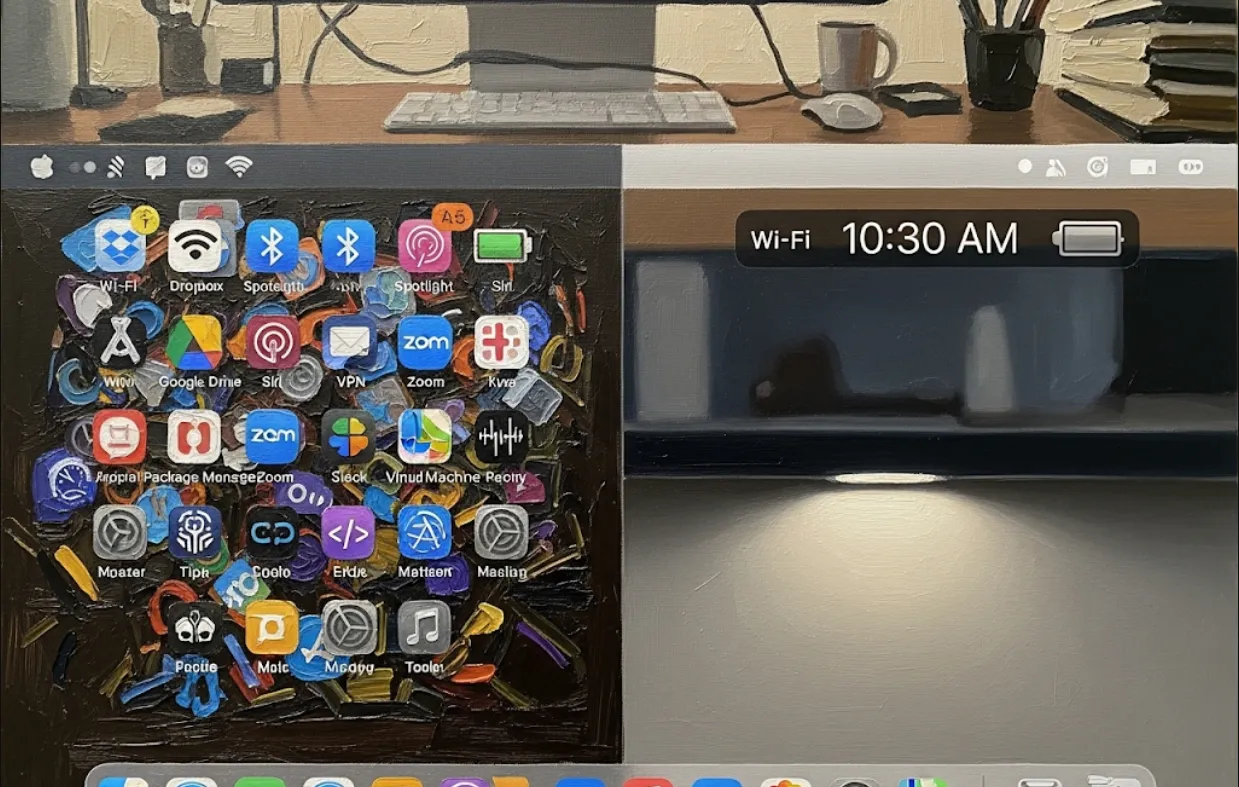
Think of it as the bridge between an LLM (Language Model) and what's actually happening on your screen. Whether you're building a coding assistant or an automated QA bot, Peekaboo makes it possible for the AI to "see" your work.
For developers, Peekaboo is more than just a screenshot tool. It’s useful for
Automated UI Debugging
You can feed a screenshot of a buggy UI directly into an AI model to ask, "Why is this button misaligned?"
Context-Aware AI Assistants
If you’re building a tool that helps users with their workflow, the AI needs to know what app is currently open and what's inside it.
MCP Integration
Since it supports the Model Context Protocol (MCP), it integrates seamlessly with tools like Claude Desktop. This means you don't have to write "glue code" to let an AI take screenshots.
Peekaboo is written in Swift and is very lightweight. You can get it up and running quickly.
Clone and Build
First, grab the source code from GitHub
git clone https://github.com/steipete/Peekaboo.git
cd Peekaboo
swift build -c release
Permissions
Because it captures your screen, macOS will ask for Screen Recording permissions. You'll need to grant this in System Settings > Privacy & Security > Screen Recording.
You can use it directly from your terminal to capture a specific app.
./peekaboo capture --app "Xcode" --out ./screenshot.png
If you use an MCP-compatible client, you can add Peekaboo to your configuration. This allows the AI to trigger screenshots whenever it needs visual context.
If you are building your own macOS app and want to use Peekaboo's logic, here is a simplified look at how you might programmatically trigger a capture
import Foundation

// Example of how one might call the CLI logic programmatically
func captureApplicationWindow(named appName: String) {
    let process = Process()
    process.executableURL = URL(fileURLWithPath: "/usr/local/bin/peekaboo")
    process.arguments = ["capture", "--app", appName, "--out", "~/Desktop/capture.png"]

    do {
        try process.run()
        process.waitUntilExit()
        print("Successfully captured \(appName)!")
    } catch {
        print("Failed to capture: \(error)")
    }
}

// Usage
captureApplicationWindow(named: "Safari")
The coolest part is the VQA feature. You can pipe the screenshot to a local model (like Llama-3-Vision) or a remote one (like GPT-4o) to ask questions about the image.
Example workflow
Capture
Peekaboo takes a snap of your Terminal.
Ask
"What is the error message in this screenshot?"
Action
The AI reads the text and suggests a fix.
Peekaboo is a "low-friction" tool. It doesn't try to do everything; it just handles the screen-grabbing part perfectly so you can focus on the AI logic. For any engineer working on Agentic Workflows (AI that does things for you), this is a must-have in your toolkit.