A Developer's Guide to steipete/CodexBar: Real-time AI Stats Without the Login Hassle
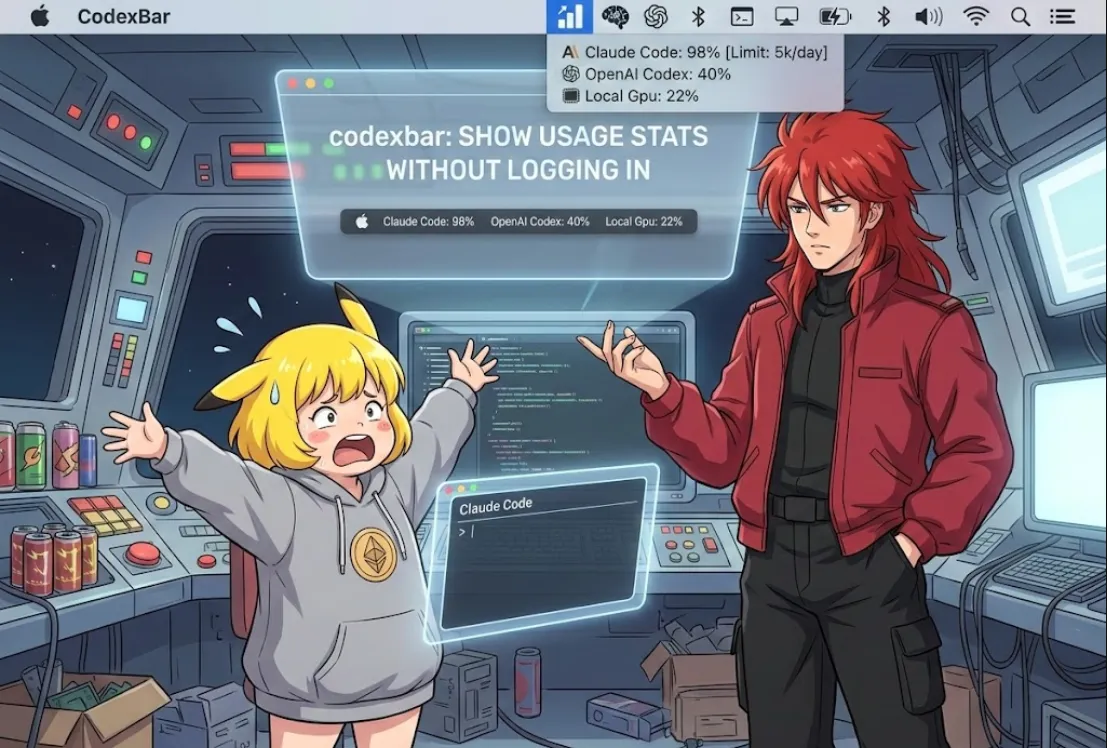
The tool you're looking at, steipete/CodexBar, is a lifesaver for exactly that. Created by Peter Steinberger (a well-known figure in the iOS/Swift community), it’s a tiny macOS menu bar app that tracks your usage for OpenAI Codex, Claude Code, and several other providers without you needing to manually log into their dashboards every time.
Here is a breakdown of why it's awesome and how you can get it running.
If you're using CLI tools like claude or codex, you know the feeling of being "cut off" mid-flow because you hit a 5-hour or weekly limit.
Zero-Friction Monitoring
It sits in your menu bar, showing tiny progress bars for your current "session" and "weekly" usage.
Privacy-First
It doesn't ask for your passwords. Instead, it smartly pulls data from local CLI outputs, browser cookies (if you opt-in), or OAuth.
Multi-Provider Support
It handles everything from GitHub Copilot and Cursor to more niche agents.
Since it's a Swift-based macOS app, you have two main ways to get it.
Check the Releases page on GitHub, download the .zip or .dmg, and drag it to your Applications folder.
If you want to poke around the code or contribute
Clone the repo
git clone https://github.com/steipete/CodexBar.git
Open in Xcode
Just double-click Package.swift or the project file.
Run
Select your Mac as the target and hit Cmd + R.
CodexBar works by "scraping" or "probing" the local environment. For example, it might run a CLI command in the background and parse the text output to find your remaining tokens.
Here’s a simplified Swift/SwiftUI logic example of how a provider might fetch usage stats using a background process
import Foundation

struct UsageStats {
    let sessionPercent: Double
    let resetTime: String
}

class ClaudeProvider {
    func fetchUsage() async throws -> UsageStats {
        let task = Process()
        task.executableURL = URL(fileURLWithPath: "/usr/local/bin/claude")
        task.arguments = ["--status"] // Hypothetical CLI flag

        let pipe = Pipe()
        task.standardOutput = pipe

        try task.run()

        let data = pipe.fileHandleForReading.readDataToEndOfFile()
        let output = String(data: data, encoding: .utf8) ?? ""

        // Use Regex to find usage numbers in the CLI output
        return parseOutput(output)
    }

    private func parseOutput(_ text: String) -> UsageStats {
        // Real CodexBar code uses complex Regex to catch
        // "45/50 requests used" or "Resets in 2h 15m"
        return UsageStats(sessionPercent: 0.9, resetTime: "2h 15m")
    }
}
The app uses a compact UI to show you exactly where you stand. It looks something like this in your menu bar
Top Bar
Your 5-hour/session window.
Bottom Bar
Your weekly limit.
Colors
They change as you approach your limit (usually turning red or dimming when data is stale).
If you want to extend this, the project is built with SwiftUI and uses a modular architecture. You can actually add your own "Provider" by implementing a specific protocol in the Sources/CodexBarCore directory. It’s a great way to learn how to interact with macOS system processes (NSTask) and menu bar items (NSStatusItem).