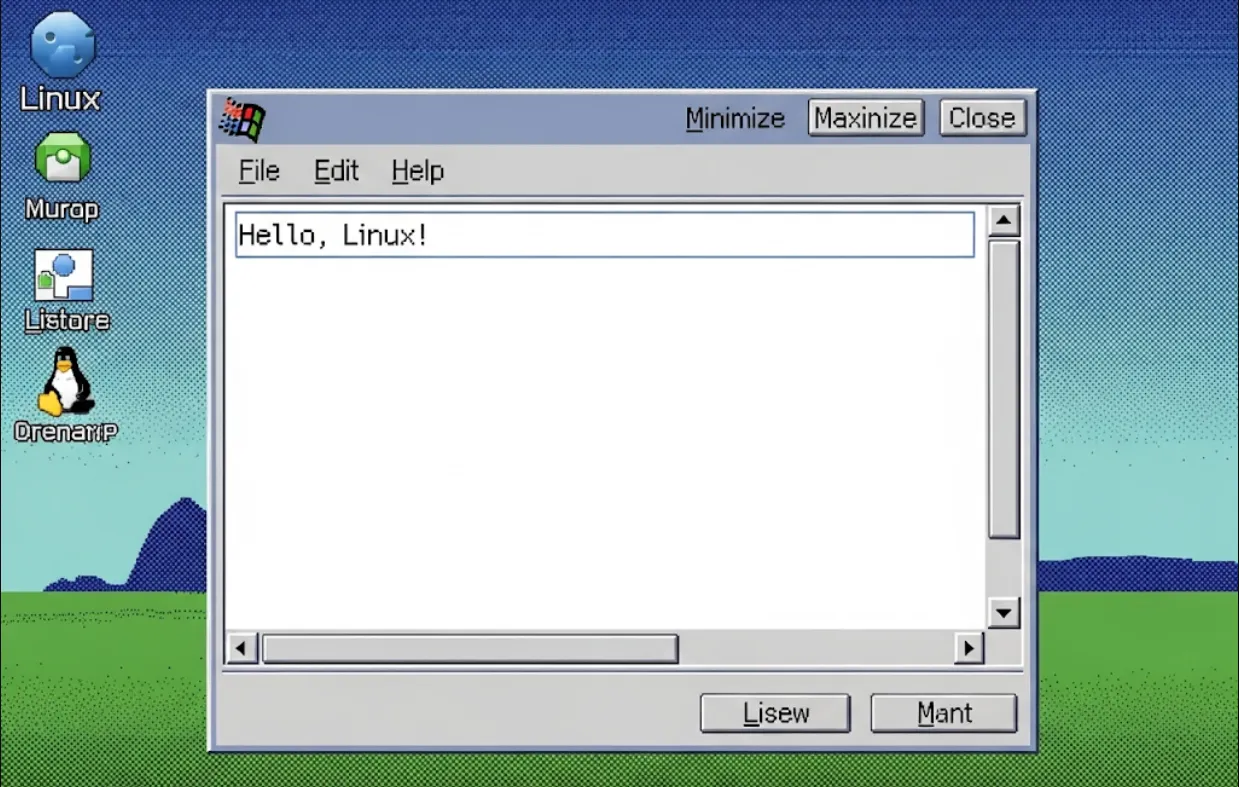
Winapps: Seamlessly Integrate Windows Apps into Your Linux Workflow

Imagine you're a Linux user, maybe you're developing on a powerful Ubuntu machine because of its excellent command-line tools and development environment. But then you encounter a situation where you need to use a Windows-only application, like Microsoft Visio for a diagram, or a specific version of Adobe Creative Suite for a design project.
Normally, this would mean one of a few annoying things
Dual-booting
Rebooting your computer every time you need to switch between OSes. This is a huge productivity killer.
Using a full VM
Running a complete Windows virtual machine with a graphical interface. This uses a lot of resources (RAM, CPU) and can feel clunky and slow, especially if you just need to launch one or two apps.
Using Wine
This is a great tool, but it doesn't always work perfectly. Some applications have glitches, and setting them up can be a headache.
winapps-org/winapps offers a much more elegant solution. It essentially lets you run a Windows virtual machine in the background and then presents the applications running inside that VM as if they were native Linux applications.
From a software engineer's perspective, this is incredibly useful because
Seamless Integration
You can launch a Windows app directly from your Linux application menu (like the GNOME or KDE application launcher). It will appear in your taskbar, and you can alt-tab between it and your other Linux applications. It's like magic!
Resource Efficiency
Unlike a full VM that's always displaying a desktop, this approach only renders the specific application windows you need. It's generally more resource-friendly.
Workflow Continuity
You can keep your entire development workflow on Linux (using tools like VS Code, Git, Docker) and seamlessly access that one or two Windows-only apps you absolutely need. No more context switching or dual-booting.
Testing and Compatibility
For engineers who need to test their software on different platforms, this provides a quick and easy way to check how a web app or other kind of software behaves when viewed from a Windows-based browser or application.
The basic setup involves a few key components
A Virtual Machine (VM) Host
This is your Linux system where you'll run the virtual machine.
The Virtual Machine
This is the VM itself, running a copy of Windows. winapps-org/winapps works with popular virtualization software like KVM/QEMU and VirtualBox.
winapps-org/winapps Scripts
These are the scripts that handle the communication and presentation layer.
Here’s a simplified breakdown of the steps
First, you need a Windows VM. Let's assume you're using KVM/QEMU, which is a common choice for developers on Linux.
# Example command to create a VM using virt-manager
# (a graphical tool for KVM/QEMU)
# You'll create a new VM, install Windows 10 or 11,
# and give it a reasonable amount of RAM and CPU.
virt-manager &
This is the tricky part, but winapps-org/winapps automates a lot of it. You need to enable RDP (Remote Desktop Protocol) on the Windows VM and make sure the Linux host can connect to it.
Clone the repository and run the setup script.
# Clone the project from GitHub
git clone https://github.com/winapps-org/winapps.git
cd winapps

# Run the setup script. This will ask you some questions
# and set up the necessary configuration files.
# It will also configure the RDP connection and generate
# the necessary scripts to launch the apps.
./installer.sh
During the installation, the script will guide you to configure which applications you want to use. It has predefined configurations for many popular apps like Microsoft Office, Notepad, Paint, and more. You can also define your own custom applications.
After the installation is complete, you can find your Windows applications directly in your Linux application menu.
For example, on a GNOME desktop, you can just press the Super (Windows) key and type "Word," and "Microsoft Word" will appear as an option. Clicking it will launch the app from your VM, and its window will appear on your Linux desktop.
While you don't write "code" in the traditional sense, the configuration is what an engineer will be most interested in. The magic happens in the .config files.
Inside the winapps/etc directory, you'll find configuration files like apps.conf. Here's a simplified example of what that might look like
# A custom application configuration for Notepad
# You can define new apps here if they are not pre-configured
#
[Notepad]
NAME=Notepad
EXEC=notepad.exe
ICON=/path/to/my/custom/icon.png
COMMENT=A simple text editor
When you run the setup script, it generates .desktop files (the standard way to define application shortcuts on Linux) in a directory like ~/.local/share/applications. These files are what tell your desktop environment how to launch the application.
Here's what a generated .desktop file for Notepad might look like
[Desktop Entry]
Name=Notepad
Comment=A simple text editor running via winapps
Exec=/home/username/winapps/bin/winapps --name "Notepad" --exec "notepad.exe"
Icon=/path/to/notepad.png
Terminal=false
Type=Application
Categories=Development;TextEditor;
This .desktop file points to the main winapps executable, which then handles the RDP connection and launches the specific application you've configured.
The project also has a Docker component, which is fantastic for software engineers who love containerization.
Instead of setting up a VM from scratch, you can use a pre-built Docker image that already has the winapps environment configured. This can make the initial setup much faster and more reproducible, especially if you're trying to set up a consistent environment for multiple team members or on a CI/CD pipeline.
The Docker setup typically involves building or pulling an image that contains the base Windows environment and the winapps scripts. You can then run this container, and it will handle the rest.