Running Windows Applications on Linux with winboat
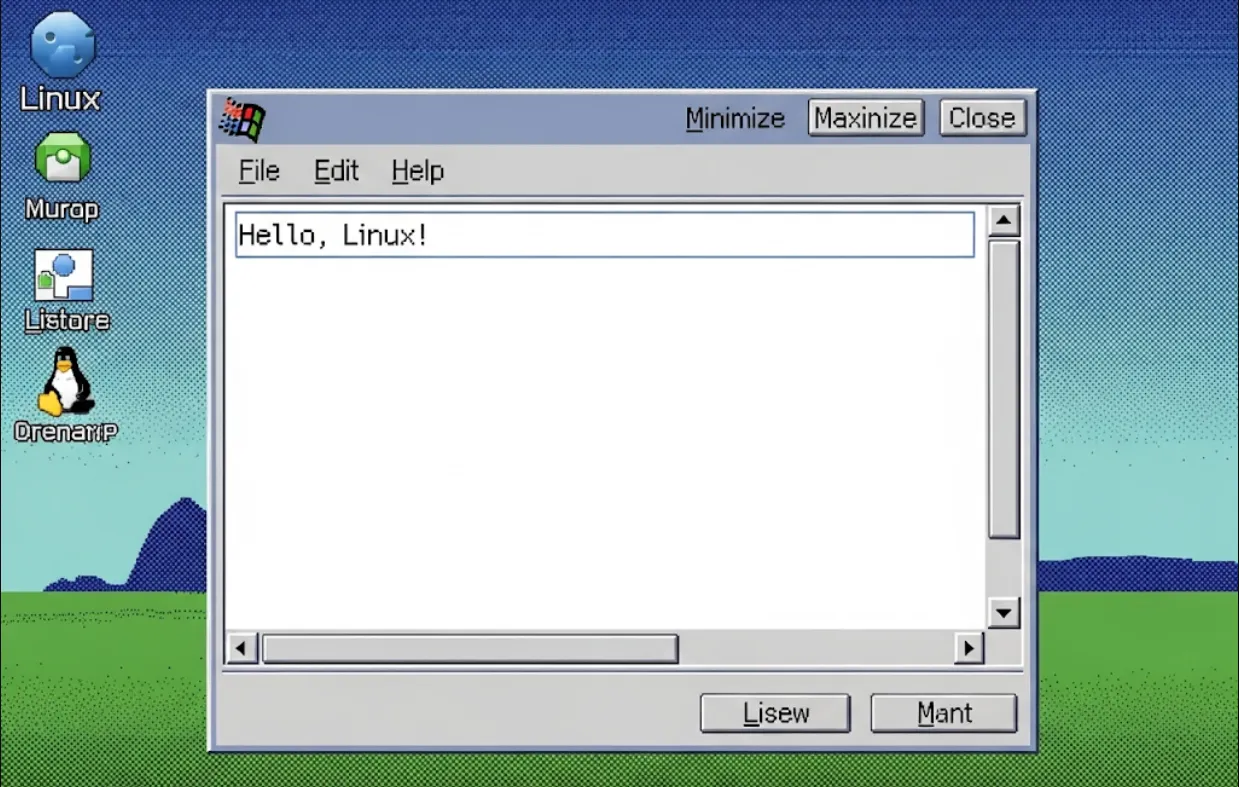
As a developer, you often encounter situations where a client, a specific library, or a tool you need for a project only works on Windows. For a Linux user, this can be a real pain. winboat provides a seamless solution by creating a lightweight, integrated environment. Here's how it helps
Development and Testing
You can test how your application behaves on a Windows environment without leaving your Linux machine. This is great for cross-platform development, especially if your software has to interface with Windows-specific APIs or frameworks.
Access to Windows-Only Tools
Need to use Microsoft Office, a specific version of a .NET tool, or a legacy Windows application for your workflow? winboat lets you do this easily, integrating the Windows app's GUI directly into your Linux desktop. This means you can use the Windows app just like any other Linux app.
Simplified CI/CD Pipelines
By containerizing Windows applications with Docker, you can standardize your build and test environments. This makes it easier to set up Continuous Integration and Continuous Deployment (CI/CD) pipelines that require specific Windows tools. Instead of provisioning a separate Windows VM, you can just run a Docker container.
Reduced Overhead
Unlike a traditional virtual machine (like VirtualBox or VMware), which requires a full OS image and consumes a lot of resources, winboat's approach is more lightweight. It uses Wine under the hood, but in a more streamlined, containerized way. This saves on disk space and RAM.
Getting started with winboat is straightforward. It leverages Docker, so you'll need to have Docker installed on your Linux machine first.
Clone the Repository
First, grab the source code from GitHub. Open your terminal and run
git clone https://github.com/TibixDev/winboat.git
cd winboat
Build the Docker Image
winboat uses a Dockerfile to build a base image. This image includes Wine and other necessary dependencies. You'll build it from the cloned directory.
docker build -t winboat .
Run a Windows App
Now for the fun part! You can run a Windows executable (an .exe file) by mounting your current directory into the container. Let's say you have a file named my_app.exe in your current directory. You can run it like this
docker run --rm -it -v $(pwd):/data winboat wine /data/my_app.exe
Let's break down this command
--rm
Automatically removes the container when it exits.
-it
Runs the container in interactive mode with a pseudo-TTY.
-v $(pwd):/data
Mounts your current directory ($(pwd)) to the /data directory inside the container. This is how the container can see your .exe file.
winboat
The name of the Docker image you just built.
wine /data/my_app.exe
The command to run inside the container, using wine to execute your Windows application.
Here are a couple of practical examples to illustrate how you might use winboat in different scenarios.
Let's say you want to use Notepad++ for a quick edit. Since it's a portable app, you don't even need to install it.
Download the Notepad++ portable zip file from their official website.
Extract the zip file.
Navigate to the extracted folder in your terminal.
Run the application with the winboat Docker image
docker run --rm -it -v $(pwd):/data winboat wine '/data/notepad++.exe'
You'll see the Notepad++ window pop up on your Linux desktop, ready to use!
For a more integrated workflow, you can create a simple shell script to make running a Windows app even easier. Let's create a script called run_notepadplusplus.sh
#!/bin/bash

# Define the path to the application inside the container
APP_PATH='/data/Notepad++Portable/notepad++.exe'

# Define the container image name
IMAGE_NAME='winboat'

# Run the Docker container, mounting the application directory
docker run --rm -it \
  -v $(pwd)/Notepad++Portable:/data \
  $IMAGE_NAME \
  wine "$APP_PATH"
To run this script, just make it executable and run it
chmod +x run_notepadplusplus.sh
./run_notepadplusplus.sh
This approach is great for managing different Windows applications required for various projects. You can have a separate script for each one, making your development environment cleaner and more organized.