From Code to Business: Exploring Frappe/ERPNext as a Software Engineer
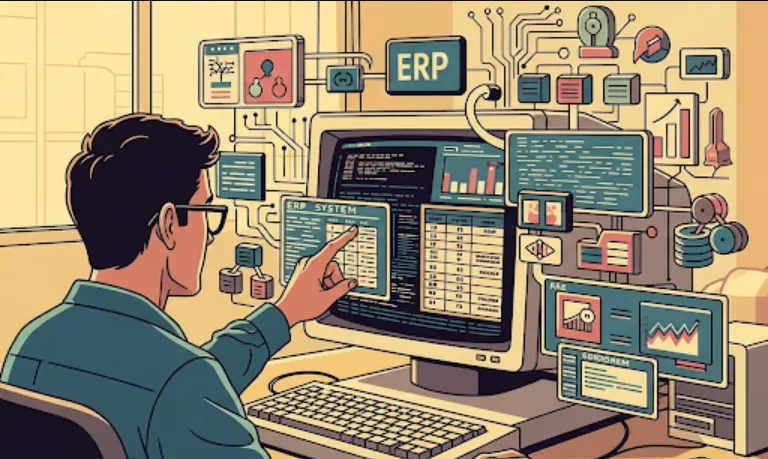
Let's dive into frappe/erpnext from a software engineer's perspective. This is a really exciting project, and it can be incredibly useful in many scenarios.
At its core, frappe/erpnext is an Open Source Enterprise Resource Planning (ERP) system. Think of an ERP as a central hub for managing all the critical aspects of a business – from finances and manufacturing to sales, HR, and project management.
frappe/erpnext is built on top of the Frappe Framework. The Frappe Framework itself is a full-stack web framework written in Python and JavaScript, designed for building data-driven applications. ERPNext is essentially a very large and comprehensive application built using Frappe.
The tags [support, python, distribution] hint at a few key things
support
This indicates that there's an active community and potentially commercial support options available for users and developers.
python
The core logic and backend of Frappe and ERPNext are written in Python, which is a fantastic language for rapid development and maintainability.
distribution
This suggests that it's designed to be easily distributed, installed, and deployed across various environments.
This is where it gets really interesting for us!
Rapid Application Development (RAD)
Low-Code/No-Code Capabilities
The Frappe Framework provides tools that allow you to build custom applications and modules with minimal coding. You can define DocTypes (data models), forms, reports, and dashboards directly from the UI. This significantly speeds up development, especially for internal tools or extensions.
Extensibility
Need to add a custom field to a customer record? Want to automate a specific business process? ERPNext is highly extensible. You can write custom Python scripts (server-side) and JavaScript (client-side) to tailor it to specific business needs without forking the entire project.
Full-Stack Development with a Purpose
Python Backend
If you're a Python developer, you'll feel right at home. You can write business logic, integrate with external APIs, and create custom reports using Python.
JavaScript Frontend
The frontend uses a modern JavaScript stack, offering opportunities to customize the UI, add client-side validations, and improve user experience.
Database Agnostic (mostly MariaDB/MySQL)
While it primarily uses MariaDB/MySQL, the Frappe ORM abstracts away much of the database interaction, making it easier to work with data.
Learning & Contribution Opportunity
Open Source
Being open source, you can dive deep into the codebase, understand how a complex ERP system is built, and even contribute to the project. This is invaluable for learning best practices in large-scale application development.
Real-World Business Logic
You'll encounter and work with a wide range of real-world business processes (invoicing, inventory, payroll, etc.), which broadens your understanding beyond just technical implementation.
Integration Powerhouse
API First
Frappe and ERPNext expose a robust REST API, allowing you to integrate with other systems (e.g., e-commerce platforms, payment gateways, marketing automation tools). This makes it a great central system in a larger IT ecosystem.
Webhooks
You can configure webhooks to trigger actions in external systems based on events within ERPNext, enabling powerful automations.
Cost-Effective Solutions
Free and Open Source
For businesses, this means no hefty licensing fees for the core ERP system. As a developer, you can leverage this to build cost-effective solutions for clients or your own ventures, focusing on value-added customizations.
The easiest way to get started and experiment is by using Docker or the official bench CLI tool.
Docker provides a clean, isolated environment to run ERPNext.
Install Docker & Docker Compose
If you don't have them already, install Docker Desktop (for Windows/macOS) or Docker Engine and Docker Compose (for Linux).
Download the Docker Compose file
You can often find official or community-maintained docker-compose.yml files. A basic setup might look like this (create a file named docker-compose.yml)
version: '3.8'
services:
  erpnext-app:
    image: frappe/erpnext:v15.0.0 # Or the version you prefer
    command: bench start
    ports:
      - "8000:8000"
    environment:
      DB_HOST: erpnext-db
      DB_PORT: "3306"
      DB_ROOT_USER: root
      DB_ROOT_PASSWORD: password # Change this in production!
      SITE_NAME: yoursite.localhost
      INSTALL_APP: erpnext
      ADMIN_PASSWORD: admin # Change this in production!
    depends_on:
      - erpnext-db
    volumes:
      - sites_vol:/home/frappe/frappe-bench/sites
      - logs_vol:/home/frappe/frappe-bench/logs

  erpnext-db:
    image: mariadb:10.6
    command: --default-authentication-plugin=mysql_native_password
    environment:
      MYSQL_ROOT_PASSWORD: password # Change this in production!
    volumes:
      - db_vol:/var/lib/mysql

volumes:
  sites_vol:
  logs_vol:
  db_vol:
Self-correction: Always advise against using default passwords in production. I've added a note for the user.
Start the containers
Open your terminal in the directory where you saved docker-compose.yml and run
docker-compose up -d
Access ERPNext
After the containers are up and running (it might take a few minutes for the first run), you can access ERPNext in your browser at http://localhost:8000. You'll typically be prompted to set up the site (language, country, etc.) and then log in with the Administrator user and the password you set in the docker-compose.yml (e.g., admin).
bench is the command-line interface for the Frappe Framework. It's powerful and essential for serious development.
Prerequisites
Python 3.6+
Node.js (LTS version)
npm
MariaDB (recommended) or MySQL
Redis (for caching)
Git
Install Bench CLI
pip install frappe-bench
Initialize a new Frappe Bench
A "bench" is your workspace where you manage multiple Frappe/ERPNext sites and apps.
bench init frappe-bench --python python3
cd frappe-bench
Create a new Frappe site
bench new-site yoursite.localhost --mariadb-root-username root --mariadb-root-password your_db_password
(Replace your_db_password with your MariaDB root password)
Install ERPNext on the site
bench get-app erpnext --branch main # Or the version you want, e.g., 'version-14'
bench --site yoursite.localhost install-app erpnext
Start the development server
bench start
Access ERPNext
Open your browser and go to http://yoursite.localhost:8000 (or http://localhost:8000 if yoursite.localhost isn't resolved).
Let's look at a couple of common customization scenarios.
Suppose you want to add a "Preferred Contact Method" field to the "Customer" DocType.
Method
Using the UI (Low-Code Approach)
Log in as Administrator.
Go to Setup > Customize > Customize Form.
Select "Customer" from the "Enter Form Type" dropdown.
Click "Add Row" in the "Fields" table.
Fill in the details
Label
Preferred Contact Method
Field Type
Select (Dropdown)
Options
Email\nPhone\nWhatsapp (each option on a new line)
Name
preferred_contact_method (automatically generated, but you can change it)
Click "Update".
Why this is useful for engineers
While it's UI-driven, understanding this process helps you see how new data points are introduced without touching the database schema directly. Frappe handles the migrations!
Let's say every time a new Sales Order is submitted, you want to automatically create a "Task" for the sales team to follow up.
Method
Using Server Scripts
Log in as Administrator.
Go to Home > Integrations > Server Script.
Click "Add Server Script".
Fill in the details
Script Name
create_followup_task_on_sales_order (or something descriptive)
DocType
Sales Order
Method
after_insert (This script will run after a new Sales Order is inserted)
Script Type
Python
Script
# This script runs after a new Sales Order is inserted

# Access the current document (the Sales Order that was just created)
# The 'doc' variable is automatically available in server scripts
sales_order = doc

# Only create a task if the Sales Order is submitted
if sales_order.docstatus == 1: # 0: Draft, 1: Submitted, 2: Cancelled
    try:
        new_task = frappe.new_doc("Task")
        new_task.subject = f"Follow up on Sales Order: {sales_order.name}"
        new_task.description = f"Sales Order {sales_order.name} for customer {sales_order.customer_name} has been submitted. Please follow up."
        new_task.status = "Open"
        new_task.priority = "High"
        new_task.assigned_to = ["sales_team_role"] # Assign to a role or specific user email
        new_task.reference_doctype = "Sales Order"
        new_task.reference_name = sales_order.name
        new_task.insert(ignore_permissions=True) # Insert the new task

        frappe.db.commit() # Commit the changes to the database

        frappe.msgprint(f"Task {new_task.name} created for Sales Order {sales_order.name}")

    except Exception as e:
        frappe.log_error(frappe.get_traceback(), "Error creating follow-up task")
        frappe.msgprint(f"Error creating follow-up task: {e}")
Click "Save".
Why this is useful for engineers
Event-Driven Programming
This demonstrates how to hook into specific events (e.g., after_insert, on_submit, before_save) to trigger custom logic.
ORM Interaction
You're using frappe.new_doc() to create a new document and doc.insert() to save it, showing how to interact with the Frappe ORM.
Error Handling & Logging
Good practices like try-except and frappe.log_error are crucial for maintainable code.
Business Logic Automation
This is a simple example of automating a business process, which is a key part of what an ERP does.