AI-Powered Markdown Notes: A Developer's Guide to codexu/note-gen
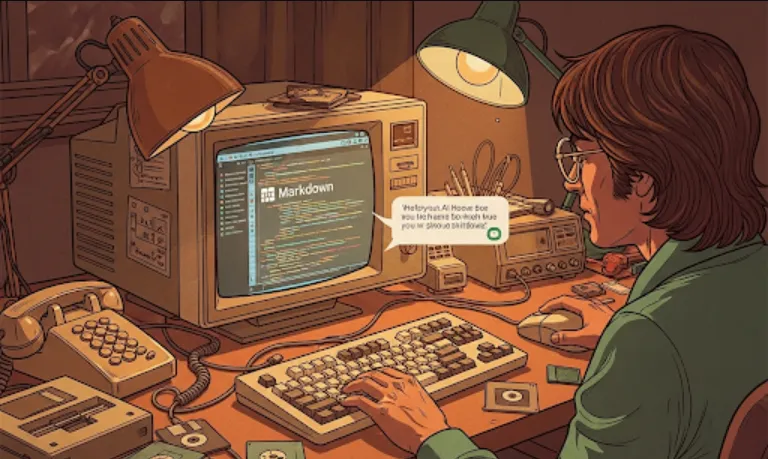
codexu/note-gen is an AI-powered note-taking application. . It's a cross-platform tool that uses Markdown for formatting, Next.js for its web framework, and an integrated chatbot to assist with your notes.
From an engineering perspective, its utility lies in a few key areas
Accelerated Development
The use of Next.js means you get features like server-side rendering (SSR) and static site generation (SSG) out of the box, which can lead to faster, more SEO-friendly applications. This saves you from building a lot of the boilerplate code yourself.
Enhanced Productivity
The integrated AI chatbot is the real star here. Instead of just writing static notes, you can interact with a bot to summarize content, ask questions about what you've written, or even generate new text based on your existing notes. This is a huge productivity boost for documentation, brainstorming, or research.
Cross-Platform Capability
Since it's a web-based application built with Next.js, it can be easily deployed and accessed on any device with a modern web browser—desktop, tablet, or mobile. This means a single codebase works everywhere.
Simple Data Format
The use of Markdown for notes is a brilliant choice. Markdown is a lightweight, human-readable format that's easy to version control with tools like Git. It also ensures your data isn't locked into a proprietary format, making it easy to migrate if needed.
In essence, codexu/note-gen is more than just a note-taking app; it's a foundation for building smart, interactive documentation or knowledge bases.
Getting codexu/note-gen up and running is straightforward. The project is likely set up as a standard Next.js application, so you'll just need a few prerequisites and a few simple commands.
Node.js & npm/yarn
Make sure you have Node.js installed on your machine. You'll need it to run the Next.js application. You can download it from the official Node.js website.
Git
You'll need Git to clone the repository.
Clone the repository
Open your terminal and run the following command to get the source code.
git clone https://github.com/codexu/note-gen.git
Navigate to the project directory
cd note-gen
Install dependencies
Use npm or yarn to install all the required packages.
npm install
# or
yarn install
Set up environment variables
The AI chatbot functionality will likely require an API key from a service like OpenAI, Google Cloud AI, or a similar provider. . You'll need to create a .env.local file in the root of the project and add your API key there.
# In .env.local
AI_API_KEY=your_secret_api_key_here
Run the development server
Once everything is set up, you can start the application.
npm run dev
# or
yarn dev
Your app should now be running locally, usually at http://localhost:3000.
Since the project is built with Next.js, a lot of the code will look familiar if you've worked with React. The core logic for the AI chatbot interaction and Markdown handling will be the most interesting parts.
The application probably uses a library like react-markdown to render the user's Markdown notes into HTML. Here's a simplified example of how that might look in a React component
// components/NoteViewer.js
import React from 'react';
import ReactMarkdown from 'react-markdown';

const NoteViewer = ({ markdownContent }) => {
  return (
    <div className="markdown-container">
      <ReactMarkdown>
        {markdownContent}
      </ReactMarkdown>
    </div>
  );
};

export default NoteViewer;
The chatbot's logic would involve making a call to an external AI API. This is often done using a serverless function or an API route within Next.js to keep your API key secure.
A simplified Next.js API route (pages/api/chat.js)
// pages/api/chat.js
import { Configuration, OpenAIApi } from 'openai';

const configuration = new Configuration({
  apiKey: process.env.AI_API_KEY,
});
const openai = new OpenAIApi(configuration);

export default async function handler(req, res) {
  if (req.method === 'POST') {
    const { prompt } = req.body;

    try {
      const completion = await openai.createCompletion({
        model: "text-davinci-003",
        prompt: `Summarize the following notes: ${prompt}`,
        temperature: 0.7,
        max_tokens: 200,
      });

      res.status(200).json({ response: completion.data.choices[0].text });
    } catch (error) {
      console.error("AI API error:", error);
      res.status(500).json({ error: 'Failed to get a response from the AI.' });
    }
  } else {
    res.status(405).json({ error: 'Method Not Allowed' });
  }
}
This code would handle a request from the frontend, send a prompt to the AI, and return the AI's response. The frontend would then display this response to the user.