Unlocking Text from Images: An Introduction to Tesseract for Engineers
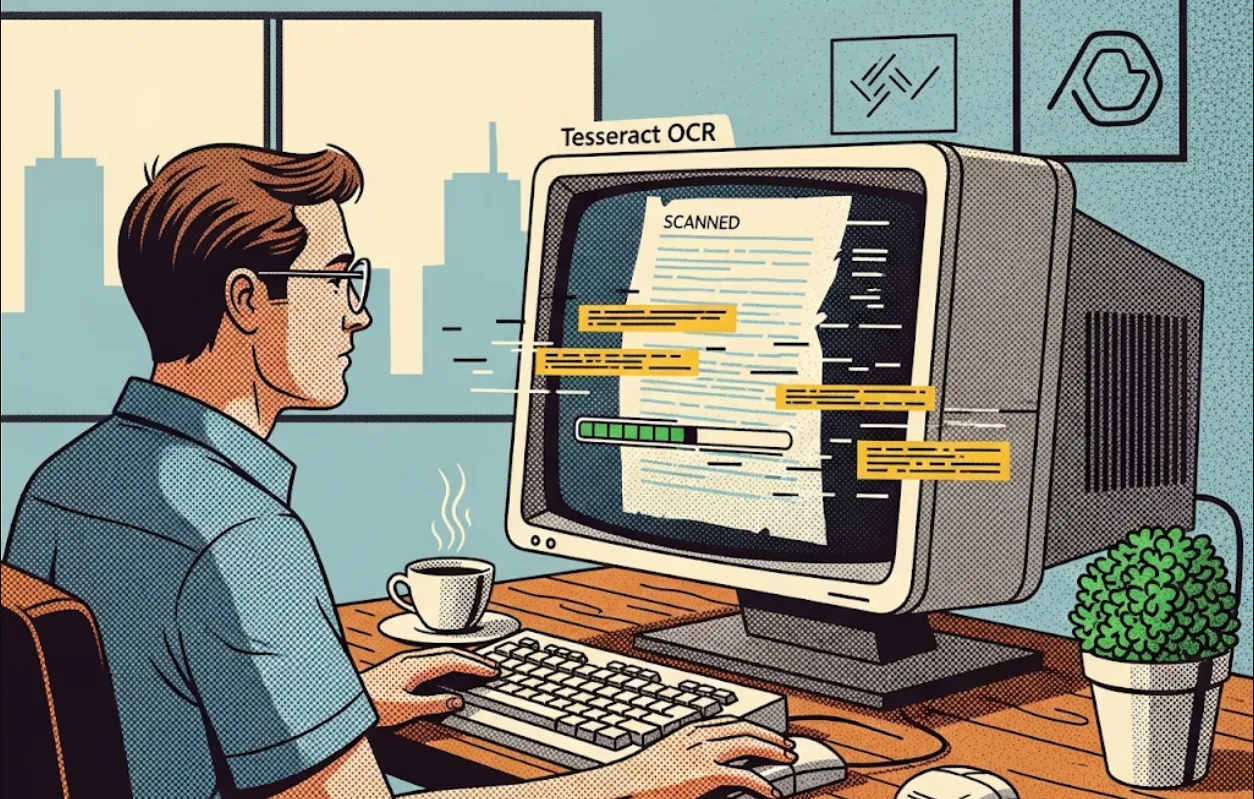
From a software engineering perspective, Tesseract's power lies in its ability to automate tasks that would otherwise require manual data entry. Instead of building a custom OCR solution from scratch, you can leverage this mature, open-source engine. This saves significant development time and resources.
Here are a few use cases where Tesseract shines
Document Digitization
If your application needs to process scanned documents like invoices, receipts, or legal papers, Tesseract can convert the image of the text into a machine-readable format.
Data Extraction
Imagine you need to pull specific information, like a date or an amount, from an image. Tesseract can read the text, and with a little more code, you can parse and extract the exact data you need.
Image-based Content Search
You can make text inside images searchable. For example, an application could use Tesseract to index a library of photos containing text, allowing users to find images by searching for words within them.
Accessibility
Tesseract can be used to read text from images for screen readers, making image-based content accessible to visually impaired users.
Getting Tesseract up and running is straightforward. The core engine is a command-line tool, but most developers interact with it through a programming language wrapper.
First, you need to install the Tesseract command-line tool.
On macOS (using Homebrew)
brew install tesseract
On Ubuntu/Debian
sudo apt install tesseract-ocr
On Windows
You can use a package manager like Chocolatey (choco install tesseract) or download the installer directly from the project's GitHub page.
Once installed, you can test it by running tesseract --version in your terminal. You'll also want to install the language packs you need. For English, it's often included, but for others, you might need to install them separately. For example, to install the Japanese language pack on Ubuntu, you'd run
sudo apt-get install tesseract-ocr-jpn
While you can call the command-line tool directly, it's far more efficient to use a library (a "wrapper") for your language of choice. This gives you more control and a more integrated experience.
A popular choice is Pytesseract for Python. It's a great example because it's simple to use and well-documented.
You'll need to install the wrapper with a package manager
pip install pytesseract
Here's a simple Python example using Pytesseract to extract text from an image. This code demonstrates the core functionality you'll use in your projects.
Pillow (PIL)
Pytesseract often works best with the Python Imaging Library (PIL) for opening image files.
pip install Pillow
# First, import the necessary libraries
import pytesseract
from PIL import Image

# Set the path to the Tesseract executable.
# You might need to change this if your install path is different.
pytesseract.pytesseract.tesseract_cmd = r'/usr/local/bin/tesseract' # Example for macOS

# Define the image file path
image_path = 'invoice.png'

# Open the image using Pillow
try:
    img = Image.open(image_path)
except FileNotFoundError:
    print(f"Error: The image file '{image_path}' was not found.")
    exit()

# Use Tesseract to perform OCR on the image
# The lang='eng' argument specifies the language.
# You can change this to 'jpn' for Japanese, or 'jpn+eng' for a mix.
text = pytesseract.image_to_string(img, lang='eng')

# Print the extracted text
print("--- Extracted Text ---")
print(text)
print("----------------------")
In this example, pytesseract.image_to_string() is the key function. It takes an image object and returns the string of text it found. The lang parameter is crucial; it tells Tesseract which language model to use for better accuracy.