A Software Engineer's Guide to LeaningTech's WebVM
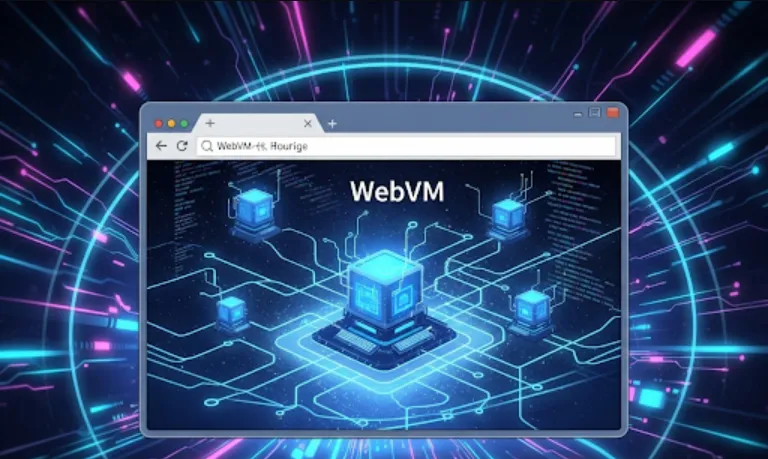
Leaning Technologies' WebVM is a groundbreaking technology that allows you to run a full Linux-like virtual machine entirely within your web browser. This isn't just a simulator; it's a server-less, client-side x86 virtual machine powered by WebAssembly. It achieves this by utilizing Leaning Technologies' proprietary CheerpX engine, which virtualizes x86 code to run efficiently in the browser environment. Essentially, it brings the power of a desktop operating system directly to your web application, without needing server-side infrastructure for the VM itself.
WebVM offers several compelling advantages for software engineers
Zero-Install Demos & Tutorials
Imagine providing users with an interactive demo of your command-line tool or a complex application without them needing to install anything. They just open a web page, and a fully functional Linux environment with your software pre-installed is ready. This significantly lowers the barrier to entry for testing and showcasing.
Reproducible Development Environments
For educational purposes or onboarding new developers, you can provide a pre-configured Linux environment in the browser. This ensures everyone is working with the same setup, eliminating "it works on my machine" issues.
Secure Sandboxing
Running code in a virtual machine within the browser provides a strong security sandbox. This is ideal for scenarios where you need to execute untrusted code (e.g., user-submitted scripts) without risking the host system.
Offline Capability
Since WebVM runs entirely client-side, once the necessary components are downloaded, the virtual machine can continue to operate even without an internet connection, provided the web page remains open.
Access to Legacy Applications
For applications tied to x86 architecture or specific Linux environments, WebVM offers a pathway to make them accessible directly through a web browser, extending their reach without requiring re-compilation or modification.
Enhanced Web Applications
You can integrate powerful command-line tools, scripting languages (like Python or Node.js), or even compilers directly into your web applications, enriching their functionality in ways previously difficult to achieve.
Simplified Deployment
By eliminating the need for server-side VM provisioning and management, WebVM simplifies the deployment of interactive environments.
Implementing WebVM generally involves these steps
Understand the Core Components
WebVM leverages WebAssembly for efficient in-browser execution and often uses technologies like CheerpX for x86 virtualization. It typically comes with a pre-built Debian-based Linux image.
Obtain the WebVM Resources
The primary way to get started is by utilizing the official Leaning Technologies' WebVM GitHub repository. This repository usually contains the necessary JavaScript files, WebAssembly binaries, and default Linux disk images.
Basic HTML Setup
You'll need a simple HTML page to host the WebVM. This page will include the necessary JavaScript files to load and initialize the virtual machine.
Configuration
You'll configure the WebVM instance, specifying things like the initial disk image, memory allocation, and any network settings (e.g., integrating with Tailscale for secure in-browser networking).
Interacting with the VM
Once loaded, you can interact with the VM programmatically using JavaScript. This allows you to send commands to the virtual machine's shell, capture its output, and even transfer files.
Deployment
A common and straightforward deployment method is to fork the WebVM GitHub repository and enable GitHub Pages. The repository often includes GitHub Actions workflows that automate the deployment process, making it easy to host your WebVM instance.
Since a full, runnable WebVM setup involves larger binary files and specific configurations, I'll provide a conceptual JavaScript example demonstrating how you might initialize and interact with a WebVM instance in a web page. This assumes you have the necessary WebVM SDK files (webvm.js, .wasm files, disk images) in your project.
<!DOCTYPE html>
<html lang="en">
<head>
    <meta charset="UTF-8">
    <meta name="viewport" content="width=device-width, initial-scale=1.0">
    <title>WebVM Interactive Shell</title>
    <style>
        #terminal {
            width: 80%;
            height: 400px;
            background-color: black;
            color: limegreen;
            font-family: monospace;
            padding: 10px;
            overflow-y: scroll;
            white-space: pre-wrap;
        }
        #input {
            width: 80%;
            padding: 8px;
            margin-top: 10px;
        }
    </style>
</head>
<body>
    <h1>WebVM Interactive Shell</h1>
    <pre id="terminal"></pre>
    <input type="text" id="input" placeholder="Type command and press Enter">

    <script>
        // This is a conceptual example.
        // In a real scenario, you would load the WebVM SDK files here,
        // typically via <script src="path/to/webvm.js"></script>

        // Mock WebVM API for demonstration
        const WebVM = {
            create: async (options) => {
                console.log("Initializing WebVM with options:", options);
                // Simulate loading time
                await new Promise(resolve => setTimeout(resolve, 2000));
                return {
                    // Simulate a method to execute commands
                    run: async (command) => {
                        console.log(`Executing command: ${command}`);
                        return new Promise(resolve => {
                            setTimeout(() => {
                                let output = '';
                                if (command.trim() === 'ls') {
                                    output = 'file1.txt\nfile2.js\ndirectory_a/';
                                } else if (command.trim() === 'pwd') {
                                    output = '/home/webvmuser';
                                } else if (command.startsWith('echo')) {
                                    output = command.substring(5);
                                } else {
                                    output = `Command not found: ${command}\n(Simulated output)`;
                                }
                                resolve({ stdout: output, stderr: '' });
                            }, 500);
                        });
                    },
                    // Simulate a method to get the terminal
                    getTerminal: () => {
                        return {
                            print: (text) => {
                                const terminal = document.getElementById('terminal');
                                terminal.textContent += text + '\n';
                                terminal.scrollTop = terminal.scrollHeight;
                            }
                        };
                    }
                };
            }
        };

        let webvmInstance;
        const terminalOutput = document.getElementById('terminal');
        const commandInput = document.getElementById('input');

        async function initWebVM() {
            terminalOutput.textContent = 'Loading WebVM...\n';
            try {
                // In a real application, you would pass actual paths to your disk images
                webvmInstance = await WebVM.create({
                    // For example: diskImages: ['/path/to/my-webvm-disk.img'],
                    // memory: 512, // MB
                });
                terminalOutput.textContent += 'WebVM loaded! Type commands below.\n';
                terminalOutput.textContent += '$ ';
            } catch (error) {
                terminalOutput.textContent += `Error loading WebVM: ${error.message}\n`;
                console.error("WebVM initialization error:", error);
            }
        }

        commandInput.addEventListener('keydown', async (event) => {
            if (event.key === 'Enter') {
                const command = commandInput.value;
                terminalOutput.textContent += command + '\n';
                commandInput.value = '';

                if (webvmInstance) {
                    try {
                        const result = await webvmInstance.run(command);
                        if (result.stdout) {
                            terminalOutput.textContent += result.stdout + '\n';
                        }
                        if (result.stderr) {
                            terminalOutput.textContent += `Error: ${result.stderr}\n`;
                        }
                    } catch (error) {
                        terminalOutput.textContent += `Error executing command: ${error.message}\n`;
                        console.error("Command execution error:", error);
                    }
                } else {
                    terminalOutput.textContent += 'WebVM not ready yet.\n';
                }
                terminalOutput.textContent += '$ ';
                terminalOutput.scrollTop = terminalOutput.scrollHeight;
            }
        });

        initWebVM();
    </script>
</body>
</html>
Explanation of the Sample Code
This is a simplified, conceptual example to illustrate the interaction. A real WebVM setup would involve loading specific webvm.js and .wasm files provided by Leaning Technologies.
The WebVM.create() function (mocked here) would typically initialize the virtual machine, taking configuration options like the path to your disk image.
The webvmInstance.run(command) (mocked) would execute a given shell command within the browser-based VM.
The output (stdout, stderr) would then be captured and displayed in the terminal div.
The HTML provides a basic terminal-like interface for user input and displaying output.
For a full, functional implementation, you would refer to the official Leaning Technologies WebVM GitHub repository for the actual SDK, documentation, and detailed examples, including how to build and deploy your own custom WebVM instances.