Code, Compile, Cat Run: Real-Time Performance Feedback with RunCat365
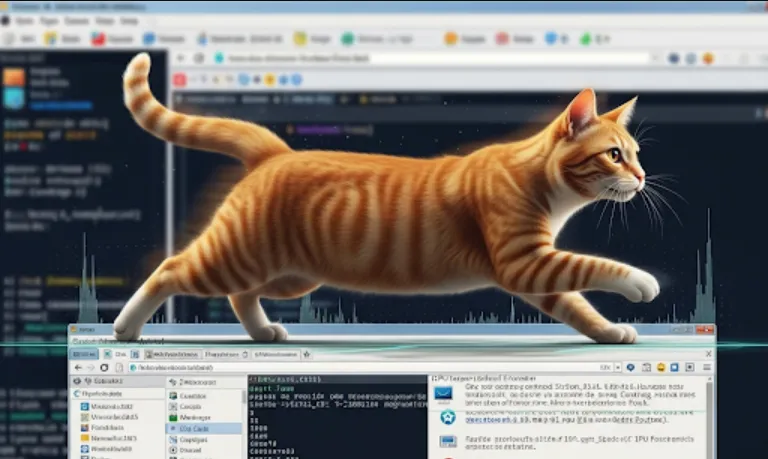
The Kyome22/RunCat365 project, which displays a cute running cat animation on your Windows taskbar, might seem like just a novelty, but from a software engineer's perspective, it can actually be quite useful, especially as a subtle, visual performance monitor.
While not a full-featured monitoring tool, RunCat365 provides a quick, at-a-glance visualization of your PC's activity, primarily CPU usage.
Instant Performance Indicator (The Running Speed)
The cat's running speed is typically linked to the CPU utilization rate.
Fast Cat
Indicates your CPU is working hard (high load). This is a quick alert that a process might be hogging resources.
Slow/Walking Cat
Indicates the CPU is idle or under low load.
Benefit
Instead of constantly opening the Task Manager (Ctrl+Shift+Esc), an engineer can use their peripheral vision to quickly check system load while coding, compiling, or running tests.
Debugging and Optimization Feedback
When you run your newly written code, perform a demanding database query, or kick off a long-running build process, you get immediate visual feedback on the resource impact.
If you're optimizing an algorithm and see the cat suddenly slow down (lower CPU usage), you know your optimization was successful!
Process Identification
If the cat suddenly starts running very fast when you're not actively doing anything, it indicates an unexpected background process (like an anti-virus scan, an automatic update, or a runaway script) is consuming resources. This prompts you to investigate and terminate the rogue process.
General System Health
It's a lightweight way to confirm your development machine is responsive and not bottlenecked by hidden resource issues.
The great thing about this tool is that it's generally an easy, standalone installation without complex configuration.
The most common and recommended way to get RunCat365 is to download it from the official GitHub repository or, if available, from the Microsoft Store.
Step 1
Go to the GitHub Page
Search for the "Kyome22/RunCat365" repository on GitHub.
Step 2
Download the Release
Look for the "Releases" section on the right side of the page. You will usually find a downloadable file (often an .msi or .zip archive) for the latest version.
Step 3
Install
If it's an .msi file, simply double-click it to run the installer wizard.
If it's a .zip file, extract the contents and run the executable file (e.g., RunCat365.exe).
Step 4
Pin to Taskbar (Optional)
Once running, the cat icon will appear in your system tray/taskbar.
While you won't write code to integrate with it, you can often configure what the cat monitors
Right-click on the running cat icon in the taskbar.
Performance Metrics
Change the metric it tracks. Options often include
CPU Usage (Default, most useful for engineers)
Memory (RAM) Usage
Disk I/O (Read/Write activity)
Network Activity
Cat Animation/Image
Many versions allow you to change the animal or animation, which is purely aesthetic but fun!
As RunCat365 is a finished application, you won't write code for it. However, you can use it to observe the effect of your own code execution.
Let's imagine you are an engineer writing a simple, computationally expensive function in Python. You can use RunCat365 to visually confirm your code's resource impact.
Scenario
A CPU-Heavy Python Script
import time

# A function designed to burn CPU cycles (simulate a heavy calculation)
def cpu_heavy_task(duration_seconds):
    """
    Performs a simple, busy-wait loop to consume CPU resources
    for a specified duration, allowing the user to observe the Cat's speed.
    """
    print(f"--- STARTING CPU-HEAVY TASK for {duration_seconds} seconds ---")
    start_time = time.time()

    # Loop until the specified duration has passed
    while time.time() - start_time < duration_seconds:
        # A simple, non-stop calculation to keep the CPU busy
        _ = 1234567 * 9876543 / 0.0001

    print("--- TASK COMPLETE ---")

# --- Execution ---
# 1. Look at your taskbar cat now (should be walking/slow).
# 2. Run this function.
# 3. Quickly glance at the taskbar cat. It should start running **VERY FAST**.
# 4. Wait for the task to complete.
# 5. Observe the cat slow down again.

cpu_heavy_task(duration_seconds=5)
Observation
When you run the cpu_heavy_task(5) function, the RunCat365 icon will immediately speed up to its fastest pace for 5 seconds, visually confirming that your script is successfully maxing out one of your CPU cores. This confirms the tool is working and provides you with real-time feedback.
I hope this explanation helps you understand how a simple, cute utility can be a handy resource-monitoring tool in a software development environment!